
If toolbars are not automatically displayed after installing VisualARQ, they have been closed, or don’t appear on the screen, they can be loaded manually by using the same method used to load Rhino Toolbars:
Rhino 7:
- Type Toolbar on the command line (or go to Rhino Menu Tools > Toolbar Layout…)
- Select VisualARQ3 from the list of toolbar files available.
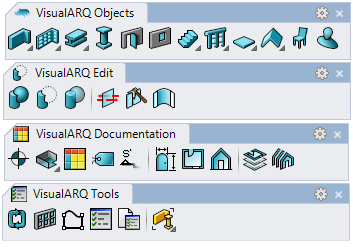
- Select the VisualARQ toolbars to load (by default we recommend selecting just the VisualARQ (4tabs) toolbar group.
Rhino 8:
- Type Toolbar on the command line (or go to Rhino Menu Window > Toolbars…)
- Select VisualARQ3 from the list of toolbar and toolbar groups.
- Select the VisualARQ toolbars to load (by default we recommend selecting just the Group: VisualARQ (4tabs) toolbar group
If the VisualARQ toolbar is not displayed in the list of toolbars and toolbar groups, in this toolbar layout dialog go to File > Open and search for the visualarq.rui file in one of these directories:
- Rhino 7: (C:\Users\”UserName”\AppData\Roaming\McNeel\Rhinoceros\7.0\UI)
- Rhino 8: (C:\Program Files\AsuniCAD\VisualARQ 3\RHINO8\UI)
More
Check out this article from McNeel to learn more about toolbar behavior in Rhino.